CallAssist Log in
New Built for loan advisors, brokers & sales teams

Never lose a lead in your call log again.

You talk to clients all day. CallAssist keeps the record for you — who called, what they need, how serious they are, and when to call back. With a WhatsApp reply already written.

  • Uses the recording your phone already makes
  • Personal calls stay private
  • Same number, same phone

Free for now · Android 7 or newer · version 2.9

Example call
↗ Rajesh Patel 11:42
Outgoing · +91 98250 ••••• · 6:14
Hot Follow up · Thu 11:00
Summary

Wants a home loan of ₹45 lakh for a flat in Bopal. Has an offer at 8.6% elsewhere and will move for 8.4%. Three months’ salary slips still to come.

Made-up example, to show what a written-up call looks like.

The problem

Fifty calls a day. You remember two.

The rest live in your head, a notebook, or nowhere. That is where business is lost — quietly.

“I told you last week…”The client remembers the details. You don’t — and it shows.
The callback that never happenedA hot lead waits a day, then signs with someone who called back.
New numbers, lost in the listA fresh enquiry looks like any other call — until it is too late.

Every call on record

Who, when, how long — kept for every call, automatically. Write up the important ones in a tap: the amount, the property, the documents still pending.

Chase the right lead first

Each lead is marked hot, warm or cold with a follow-up date. Open your list in the morning and start with the client most ready to move.

Reply while it’s fresh

A WhatsApp message drafted from what was actually said on the call. Check it, change a word, send — before the client has put the phone down.

How it works

Keep calling the way you do. CallAssist does the paperwork.

1

Call as usual

Your number, your phone, your dialer. Nothing changes for you or your client.

2

Every call is saved

When a call ends, CallAssist adds it to your list with the recording your phone made — on the phone and on the web dashboard.

CallAssist never records by itself; it uses your phone’s own recording.

3

Tap Analyse on the ones that matter

In a minute or two you get the summary, the lead rating, the follow-up date and a WhatsApp reply.

AI runs only when you ask — none is spent on small talk.

Hot

Ready to move — call first.

Warm

Interested — needs a nudge.

Cold

Not now — stay in touch.

The dashboard

Open it in the morning. Know exactly who to call.

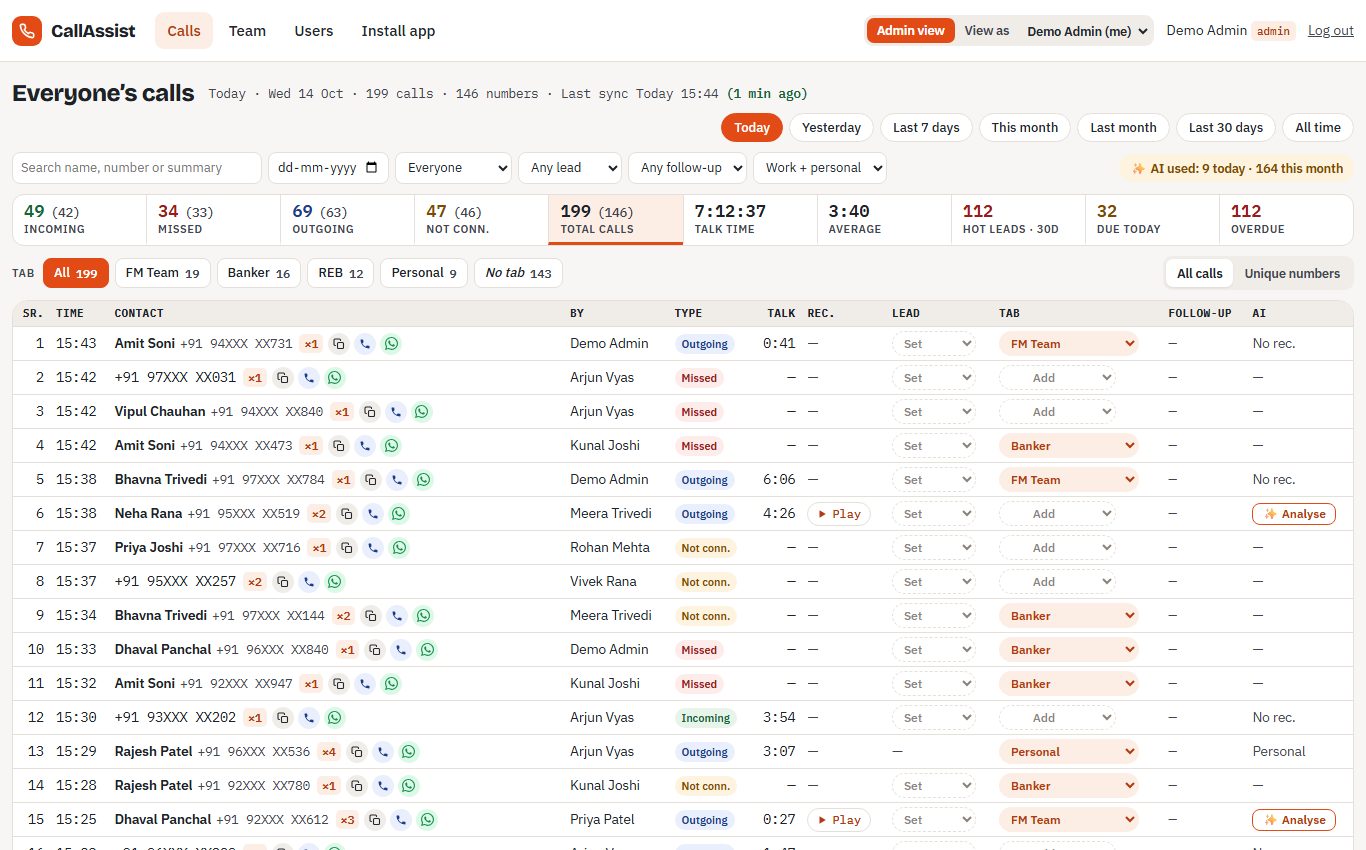
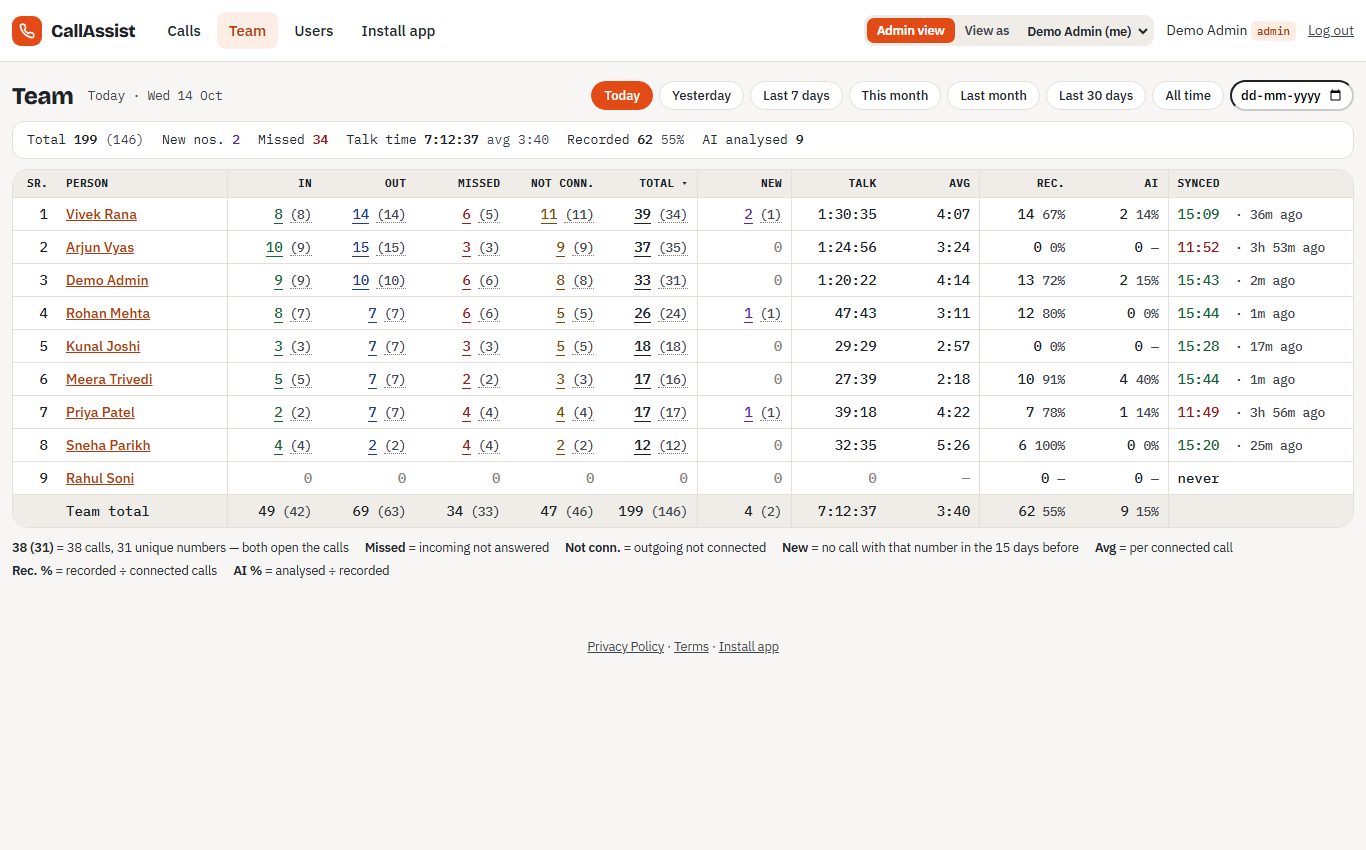
Everything the phone saves is also on your computer — easier to read, search and share with your team.

Calls page: today's calls with incoming, missed and outgoing counts, lead and tab for each call, and an Analyse button
Calls — the whole day at a glance, with lead, tab, follow-up and one-tap call or WhatsApp.
Team page: one row per person with calls, new numbers, talk time, recordings and last sync
Team — every person’s calls, new numbers and talk time, side by side.

Screenshots with sample data — names and numbers are made up.

Follow-ups due today

Today’s and overdue callbacks in one list. No client waits because someone forgot.

New numbers flagged

A number nobody in your team has spoken to in 15 days is marked new — a fresh enquiry never hides in the list.

Find any client in seconds

Search by name, number or anything in the summary. Filter by hot leads, date or follow-ups.

Your own tabs

Group callers your way — Bankers, Builders, New lead. Set it once and every call from that number follows.

Morning email

At 9:30 every day: yesterday’s calls — incoming, outgoing, missed — in your inbox.

Call or WhatsApp in one tap

Every number has a call and a WhatsApp button beside it. Numbers stay hidden until you point at them.

For owners and team leaders

See your whole team’s calls — without asking for a report.

Who called whom, who missed what, and which leads are going cold. On one screen, every day.

  • Calls per person — incoming, outgoing, missed, not connected and talk time, for any day or month.
  • Every number opens the calls behind it, so a count is never just a count.
  • Phone health — see whose phone has stopped syncing, has recording off or needs the update, and send them the fix on WhatsApp.
  • View as a team member — see exactly what they see, without changing anything.
  • New people join with a code you share — no forms for you to fill.
Your data

Your calls are your business. Here is exactly where they go.

Saved to your CallAssist account
  • Each call — who, when, which way, how long
  • Summary, lead rating and follow-up, once analysed
  • The recording of a work call
Sent to Google’s AI
  • The recording of a work call, only when someone taps Analyse — nothing else
Never, for personal calls
  • Mark a call personal and it stays off your work list
  • No recording is uploaded, no AI reads it
  • Mark it later and its recording and summary are deleted

Who can see your calls. You see your own. Your admin sees the team’s — for a personal call, only that it happened, never its recording or summary. The server enforces this, not just the app.

Recording calls in India. Tell the client the call may be recorded — for example, “This call may be recorded for our records.” Privacy Policy · Terms

Get started

Up and running in two minutes

PhoneAndroid 7 or newer — not iPhone. Installed from this page, not the Play Store (see why below).
Call recordingSwitched on in your phone’s dialer. CallAssist can only write up calls your phone recorded.
InternetWi-Fi or mobile data, so each call reaches the website after it ends.
PermissionsAsked once, after you sign in:
Call history — who you called and for how long · Phone — to know when a call ends · Contacts — to show your client’s saved name instead of only a number (only the name on each call is sent, never your whole contact list) · Music and audio — to find the recording of the call · Run in background — so calls reach the website when the app is closed.
  1. Download the appOpen this page on your Android phone (in Chrome) and tap the button (18.8 MB).
    Download the CallAssist app
  2. Open the file and tap InstallWhen the download finishes, tap Open. If the phone says it is not allowed to install unknown apps, tap Settings, switch on Allow from this source, and go back. A warning that the app is not from the Play Store is normal.
  3. Sign in and allow accessSign in with your email and password — once; the app stays signed in. Tap Allow for each permission, and Allow again when it asks to run in the background, so calls are sent even when the app is closed.
  4. Try one callMake a short call and hang up. A minute later it is on the website. To get its summary, tap Analyse on that call.

Updating

The app tells you when a new version is out — tap Update. Or download again here and install over the old one. No need to uninstall.

Your data is safe either way: calls and summaries live on the website. Even if you uninstall, sign in again and everything is there.

Is my download genuine?

CallAssist reads call history and recordings, which Google allows only for a few kinds of apps on the Play Store — so it is installed from this page instead. Every genuine copy has this fingerprint (SHA-256):

9b9295678e948a26e5aa2755efc783e5b4de64dbda23275ed81042dec7e5592e

FAQ

Questions people ask first

Does CallAssist record my calls?

No. It uses the recording your phone already makes. If call recording is off in your dialer, CallAssist still lists the call, but has nothing to write up.

Do I need a new number or a special phone?

No. Keep your number, your SIM and your dialer. Any Android phone with Android 7 or newer works.

Will my personal calls be seen?

Mark a call personal and it stays off your work list. Its recording is never uploaded and no AI reads it. Your admin sees only that a call happened.

What does it cost?

CallAssist is free for now. If paid plans come later, we will tell you well before anything is charged — nothing changes without notice.

Do I need a computer?

No. Everything works on the phone. The web dashboard is there when you want a bigger screen — or when you lead a team.

It says there’s no recording for a call.

Switch on call recording in your phone’s dialer. On Samsung: Phone → ⋮ → Settings → Record calls → Auto record calls.

My phone says “App not installed”. What now?

Usually the phone is short of space, or an older copy doesn’t match the new one. Free some space, or uninstall the old copy and install again. Your calls and summaries are on the website, so nothing is lost — sign in again and they come back.

Why isn’t it on the Play Store?

CallAssist reads your call history and call recordings. Google allows that only for a few kinds of apps on the Play Store, so CallAssist is installed from this page. To check a download is genuine, compare it with the fingerprint in the Get started section.

How do I delete my account and my data?

Ask your team admin, or write to info@callassist.co.in from the email on your account. We delete the account with its calls and recordings. See the Privacy Policy for what we keep and for how long.

Your next client call can be your first one on record.

Install CallAssist in two minutes. Keep calling the way you do — and stop losing what was said.

Get the Android app
Talk to us

Questions? Want a quick demo for your team?

Message us on WhatsApp or call — we’re in Ahmedabad and happy to help you set up.